


FAQ


Browse by category
Coming soon
Basics & Glossary
What is a "Member"?


A 'Member' is any participant in the message book, including the Organizer, who has contributed a message.
[Available to all participants]
・Submit messages and set a profile icon.
[Exclusive to registered members]
・Edit or delete their own messages.
・Hide their messages from other participants.
・Purchase the completed message book.
・View a list of all message books they have participated in.
What is a "Master" (Organizer)?
The 'Master' is the Organizer of the message book. Initially, the person who creates the book is the Master, but this role can be transferred to another member.
The Master has full administrative rights over the book, including editing all messages, changing the design, and finalizing the project.
What is a "book design"?
This refers to the original, professionally created design templates for your message book. You can choose a design that best suits the occasion and recipient, and it can be produced as both a printed book and a PDF file.
What is a "message frame"?
A message frame is the decorated box that contains a member's message on the page. You can place between 1 and 6 message frames on a single page.
What is a "group messages page"?
This feature displays a list of all participants' messages on the final pages of the book.
Pages are automatically added according to the number of messages, making it convenient for two-page spread displays.
[Specifications]
・Up to 15 messages are displayed per page, allowing for 30 messages per two-page spread.
・For every 30 additional messages, two more pages (one spread) are automatically added.
※The text on this page appears smaller than on regular message pages.
※You cannot create a book using only the group message pages.
What is "Balanced Display"?
Clicking 'Balanced Display' automatically adjusts the layout to create more space between message frames. This results in fewer messages per page, creating a clean, easy-to-read look.
What is "Compact Display"?
Clicking 'Compact Display' minimizes the space between message frames, fitting the maximum number of messages onto each page. This is recommended if you want to reduce the total number of pages.
What is the "Photo Collection Feature"?
This feature allows the Organizer (Master) to request and collect photos directly from the members of the message book. It is available exclusively to registered members.
What is "Auto Preview"?
'Auto Preview' is a feature that automatically turns the pages of the completed digital message book, creating a slideshow effect. It's a great option for displaying the book on a screen for a group to view together.
What is the "Photos" tab in the editor?
When you add photos, they are collected in the 'Photos' tab in the right-hand column. From there, you can drag and drop them onto the desired page to place them in your book.
What is the "Messages" tab in the editor?
As members submit their entries, their messages will appear in the 'Messages' tab in the right-hand column. You can then drag and drop these message frames onto any page to arrange your layout.
What is "Sugoyose"?
Sugoyose is a modern online tool that allows you to easily and quickly create a collaborative message book. By having it professionally printed, it becomes a much more special and lasting gift than a traditional greeting card.
What is a "photo page"?
A photo page is a page layout that focuses on a photograph and does not contain any message frames. These pages can be inserted anywhere in your book after the first page.
What is the "Photos" tab in the editor?
When you add photos, they are collected in the 'Photos' tab in the right-hand column. From there, you can drag and drop them onto the desired page to place them in your book.
Creating & Editing
What is the difference between "Add new member message" and "Write my own message"?
These two options are for different purposes:
'Write my own message'
This is for the Organizer (Master) to write their own personal message in the book. Even if the Master role is transferred to someone else later, this message can still be edited by the original author.
'Add new member messages'
This is a function for the Master to write a message on behalf of another participant who may be unable to do so themselves. Only the current Master of the book can edit messages added this way.
What is the "confirmation of the printed book and PDF data"?
This function allows you to download a final proof of your book to see how it will look when printed or as a PDF. The online preview is for web viewing only and may differ slightly from the final product.
Please be sure to download and check this proof data carefully before you finalize your message book.
How do I change the page background?
This feature allows you to change the background design of individual message pages.
How to use:
1. From the book's editing screen, click on the page you wish to change.
2. Select 'Change Page Background' at the bottom left of the screen to choose a new design.
Can I put more than one photo on a page?
Yes, the standard 'photo frame' page is designed to display one photo per page. To place multiple photos on a single page, please use the 'album page' feature.
Can anyone with the URL write a message?
Yes, anyone who has the participation URL can access the page and write a message. The URL can be forwarded without any issues.
Where can I find the URL to send to participants?
The "Sugoyose Participation URL" for collecting messages will be displayed on the Master (Organizer)'s management page after completing the basic settings of the book.
※ This feature is only available on the PC (desktop) version of the site.
[How to display the management screen]
1. Click the icon in the top right corner of the site and select "My Page".
2. From the "Books You Are the Master Of" list, select the relevant book.
3. On the displayed management page, you will find the URL.
By sharing this URL with participants, you can start collecting messages.
What is the process from deadline to completion and purchase?
**[Steps from Deadline to Completion]**
From "Sugoyose List You Are the Master Of" on your My Page, select the relevant book.
1. **Close Submissions**
When the deadline you set arrives, or by clicking the "Close This Sugoyose" button, you can end message submissions.
※ You can also reopen submissions using the "Extend Message Deadline" button.
2. **Edit the Book**
Click "Edit Book" to finalize the layout and adjust the messages.
3. **Check the Preview**
Click "Check Sugoyose Preview Data" → then "Generate Preview Data" to create a preview. Please be sure to review it carefully for any mistakes.
※ If you edit the book afterward, regenerate the preview for final confirmation.
4. **Complete the Sugoyose**
Click the "Complete This Sugoyose" button.
[Important] Once completed, you will no longer be able to edit it.
5. **Purchase**
After completion, buttons for "PDF", "Printed Book", and "Send via Web"* will appear, allowing you to proceed with the purchase.
※ *"Send via Web" is a feature that allows you to share a URL for viewing the completed version (free for 2 weeks after completion; the Organizer can purchase extensions).
**[Details on How to Purchase]**
For more details on how to purchase, please see the Q&A below:
Q. I want to purchase a completed Sugoyose
How do I add a new page?
To add a new page, simply hover your mouse over the gray bar between two existing pages. When the bar turns orange, click it, and a new blank page will be inserted.
How do I delete a page?
You can only delete a page that is completely empty (contains no message frames or photos). When you hover over an empty page, a delete button will appear in the top-right corner.
Can I change the design after collecting messages?
Yes, you can change the book's design at any time before it is finalized.
From the Organizer's (Master's) management screen, click "Change Book Design," select a new design, and confirm. Once the book's status is set to "Complete," no further design changes are possible.
How can I check or change the text on the spine and inside cover?
The text on the spine and inside cover is automatically populated from the book's main title.
To change this text, please edit the "Title of this message book" field in the "Edit Basic Information" section.
You can see how the final text will appear by downloading the proof data from the "Check Printed Book/PDF Data" function before finalizing.
How do I move or reorder messages?
Yes, the order of messages can be changed freely on the editing screen. You can adjust the position of messages by dragging and dropping them.
[How to Move Messages]
・Method 1: On the main "Page List" screen, drag and drop a message to a new position.
・Method 2: Within a specific page's editing view, drag a message from the list in the right-hand column onto the page.
How to add, delete, and edit messages.
1. Adding Messages
・For organizers:
Within the "Organizer's Message Management Page," click on "Edit Messages," then select "Write Your Own Message" at the top right and enter your text. Messages you write here remain editable by your account even after transferring organizer rights.
・For participants:
Within the "Join [Name]’s Message Book!" section, click "Enter Your Message" (non-members) or "Add a Message" (members only) and submit your message.
2. Adding Ghostwritten Messages
Within the "Organizer's Message Management Page," click on "Edit Messages," then choose "Add New Member Message" and enter the ghostwritten text. Note that if the organizer is changed, editing rights for these messages will be revoked.
3. Editing/Deleting Messages
・For organizers:
In the "Organizer's Message Management Page," click "Delete/Edit" next to each message in the list.
・For members:
Within the "Join [Name]’s Message Book!" section, open the "Messages from Everyone" list and click "Delete/Edit" on your own entry.
・For non-members:
You cannot delete or edit messages yourself. Please ask the organizer to make any changes on your behalf.
Can I edit the book after the deadline?
Yes, the layout, photo placement, and message content can be edited at any time after the submission deadline, as long as the book has not been finalized.
However, once you click the "Complete" button, no further edits are possible.
※The only setting that cannot be changed after initial setup is whether the book includes the Q&A feature.
Can I change the deadline after setting it?
Yes, the deadline can be changed at any time before the book is finalized. The Organizer can change the date in the "Edit Basic Information" section of the management page.
The Organizer can also close submissions manually at any time using the "Close this Sugoyose" button.
How do I set the cover image?
You can set the cover photo by dragging and dropping an image file into the designated upload area or by clicking to browse your files. The uploaded photo can be cropped before it is finalized.
How can I check the final data for printing/PDF?
To see exactly how your book will look when printed or as a PDF, you must use the "Check Printed Book/PDF Data" function to generate and download a proof file.
The online preview may differ slightly, so please use the downloaded proof for your final check before completing the project.
Can the Organizer write a message on behalf of someone?
Yes, the Organizer (Master) can post a message on behalf of a participant.
'Write my own message'
This is for the Organizer's personal message. This message remains editable by the original author even if the Master role is transferred.
'Add new member messages'
This is the function for ghostwriting. Only the current Master of the book can edit messages added this way.
How do I add images or photos to the book?
From the book editing screen, you can add photos using the 'Photos' tab in the right-hand column. Simply click '+ Add Photo' to upload an image from your device. Once uploaded, you can drag and drop the photo onto your desired page.
Can I create photo-only pages?
Yes, you can add pages that are dedicated to photos. Please use the 'photo page' or 'album page' layouts for this purpose.
How can I quickly jump to a specific page?
By clicking the 'Go to page' button in the editor, a list of all pages in your book will appear. This allows you to quickly navigate to any page, even in a very large book.
Account & Registration
How do I change the Organizer (Master)?
This feature allows the current Organizer (Master) to transfer their role and all administrative rights to another registered member of the message book.
How to use:
1. From the Organizer's management screen, click 'Change Organizer.'
2. Enter the email address of the member you wish to transfer the role to and confirm.
Please be careful, as this change is immediate and irreversible.
Do I need to register as a member?
Yes, you must register for a free account to create a message book or use member-exclusive features.
Functionality & Specs
What is the "Splitting Function" for books over the page limit?
A printed book cannot exceed 42 pages. The 'splitting function' allows you to divide a single large message book into multiple smaller volumes, making it possible to print books that exceed the page limit.
Note: The page limit for the PDF and Web versions is 120 pages.
What are the sizes and specifications of the printed book?
[Printed Book Sizes (Square)]
・A4 Square: Approx. 21.6cm x 21.6cm
・A5 Square: Approx. 15.6cm x 15.6cm
[Specifications]
・Printing: High-quality matte finish
・Included: A protective plastic sleeve case
Can I edit a book on a smartphone?
While message submission, viewing, and purchasing of the completed book are possible on smartphones, we strongly recommend using a PC for key Organizer (Master) operations such as editing the book design.
This is because certain tasks, such as previewing data, may require the performance of a PC. For more details, please refer to our "Recommended Environment" page.
<About the Recommended Environment>
https://sugoyose.jp/environment
Where can I edit text and what are the character limits?
The maximum character limits for editable text are as follows:
■ Messages
・Name: 13 full-width or 16 half-width characters
・Message Body: Varies from 80 to 125 characters depending on the layout.
■ Questions and Answers
・Question: 30 full-width or 37 half-width characters
・Answer: 15 full-width or 18 half-width characters
■ Book Titles (Cover, etc.)
・Up to 22 characters.
Please note: Line breaks and special characters/emojis may not display correctly.
What is the recommended image size for uploads?
For the best printing quality, we recommend the following image sizes:
・Icon Images (Square): 1000 x 1000 pixels or larger
・Cover Images (Square): 1024 x 1024 pixels or larger
・Images for Pages (Landscape): 2480 x 1370 pixels or larger
While other sizes can be used, using images smaller than the recommended size may result in a blurry or low-quality appearance when printed.
About the editing, viewing, and purchase periods
■ Editing Period
If the book is not finalized, it can be edited for 90 days from the set deadline. Please note that editing will no longer be possible after this period. (The deadline itself can be changed.)
※ Once the "Complete" button is clicked, editing will no longer be possible from that point on.
■ Web Viewing Period
The completed book can be viewed on the web free of charge for 2 weeks after completion (for books completed on or before October 14, 2026: 90 days after completion). The deadline is shown on My Page and on the viewing page.
The Organizer can purchase a "Web viewing extension" (60 days per purchase) as many times as needed. If purchased before the deadline, the extension starts the day after the current deadline; if purchased after it has expired, it starts the day after payment. The extension applies to everyone who views the book.
※ Extending the web viewing period does not extend the order deadline.
■ Order Deadline (Purchase Period)
Printed books and PDFs can be ordered until 90 days after the message deadline. Even after the web viewing period has ended, the Organizer can still view and order the book from My Page until the order deadline.
The Organizer can purchase an "Order deadline extension" (90 days per purchase, up to 180 days in total).
※ Extending the order deadline does not extend the web viewing period.
Where can I edit text and what are the character limits?
The editable sections and their maximum character limits are as follows:
【Message-related】
・Name: 13 full-width / 16 half-width characters
・Body (with question): 80 full-width / 150 half-width characters
・Body (without question): 100 full-width / 150 half-width characters
・Question: 30 full-width / 37 half-width characters
・Answer: 15 full-width / 18 half-width characters
【Book Title-related】
・Title on the front and back cover: Up to 22 characters each
・Title on the spine and inside cover: Varies depending on the design, so please check the preview.
【Notes】
・Line breaks cannot be used in the message body or titles.
・Special characters and emojis may not display correctly.
・If using the book-splitting feature, you can enter different content on the top and bottom front/back covers, but the spine title, inside cover title, and message board title will be shared across all parts.
How do I manage a message book for a large group?
【Message and Page Limits】
・Web/PDF Version: Maximum 120 pages
・Printed Version: Maximum 42 pages (approx. 246 messages)
If the printed version exceeds the limit, an alert saying "Printing Not Possible" will be displayed. In that case, please follow one of the methods below.
【How to Handle When Limits Are Exceeded】
① Use the Split Feature
Divide the message book into multiple volumes to keep each book within the page limit.
② Issue Multiple URLs
Create multiple books in advance and instruct participants to use different URLs to distribute the message entries.
【Important Notes】
Large PDFs may take longer to download, and data with many images may become unstable during operation. If the data becomes too heavy, we recommend using the split feature.
How to Use the Split Feature:
For detailed instructions on how to use the split feature, please refer to the following page:
"How to Create a Sugoyose > Q. I want to print a Sugoyose book that exceeds 42 pages (about the split feature)"
Why is the left side of the question page blank?
The blank space on the left side of the question page is intentional. It serves as the inside cover of the printed book, and no printing can be applied to this area.
What are the character limits for messages?
The maximum character limits for each item are as follows:
■ Name
13 full-width / 16 half-width characters
■ Message Body
・With question: 80 full-width / 150 half-width characters
・Without question: 100 full-width / 150 half-width characters
■ Question & Answer
・Question (per item): 30 full-width / 37 half-width characters
・Answer (per item): 15 full-width / 18 half-width characters
※ You cannot enter characters beyond the specified limits.
What is the maximum number of messages for a printed book?
The maximum number of messages that can be included in a single printed book is 246, assuming six messages are placed on each page and the "Group Messages Page" feature is not used (42 pages in total).
If you use the "Group Messages Page" feature, additional pages will be added based on the number of messages, so the total number of messages that can be included will vary.
If you wish to print more messages beyond the limit, please use the Split Feature or create a new book.
What is the maximum number of messages for a printed book?
A single printed book can contain a maximum of 246 messages. If you wish to include more, you will need to create a second book or use the 'splitting function'.
Is there a limit to the number of photo pages I can add?
You can add an unlimited number of image pages to the Web and PDF versions of your book. However, for a printed book, the total page count cannot exceed 42 pages. Each 'photo frame' page displays one photo.
How can I hide my message from other participants?
Registered members have the option to set their message to 'hidden.' This makes the message visible only to the Organizer (Master). This setting can be found in the message submission form. Non-registered participants cannot hide their messages.
Can I edit a book after it's completed?
No. Once a message book is finalized, it cannot be edited in any way. Please check the proof data carefully for any errors before completing the project.
Can I create a book with only the group messages page?
No, this is not possible. The group messages page is automatically generated based on the individual messages submitted to the book, so it cannot be created on its own.
Is my editing progress saved automatically?
Our service features an automatic save function, so you do not need to save your work manually. All edits are saved automatically in the background, even when you navigate away from the editing page.
How can I hide my message from other participants?
Registered members can set their message to "hidden." This makes the message visible only to the Organizer (Master). This setting can be found in the message submission form. Non-registered participants cannot hide their messages.
Please Note: When the book is finalized, all hidden messages will become visible to everyone in the final product.
Can I print a book if it exceeds the maximum page limit?
A single printed book has a maximum page count of 42 pages. This total includes all message pages and photo pages. If your book exceeds 42 pages, you will need to use the 'splitting function' to print it as multiple volumes.
The page limit for the Web and PDF versions is 120 pages.
Can I change the orientation (portrait/landscape) of messages?
The orientation of the messages is automatically determined based on the number of messages placed on a single page. It cannot be changed manually. If you wish to unify the orientation, please adjust the number of messages per page accordingly.
・1 message: Portrait
・2, 3, 4, 5, or 6 messages: Landscape
Can I hide the "Q" and "A" text in the Q&A feature?
No. If you choose the layout that includes the Q&A feature, the 'Q' and 'A' indicators cannot be hidden. Please use the design as is.
Can I remove the fixed text from a design background?
No, any text that is part of the core design template cannot be changed or removed.
About text orientation on the spine (Japanese/English)
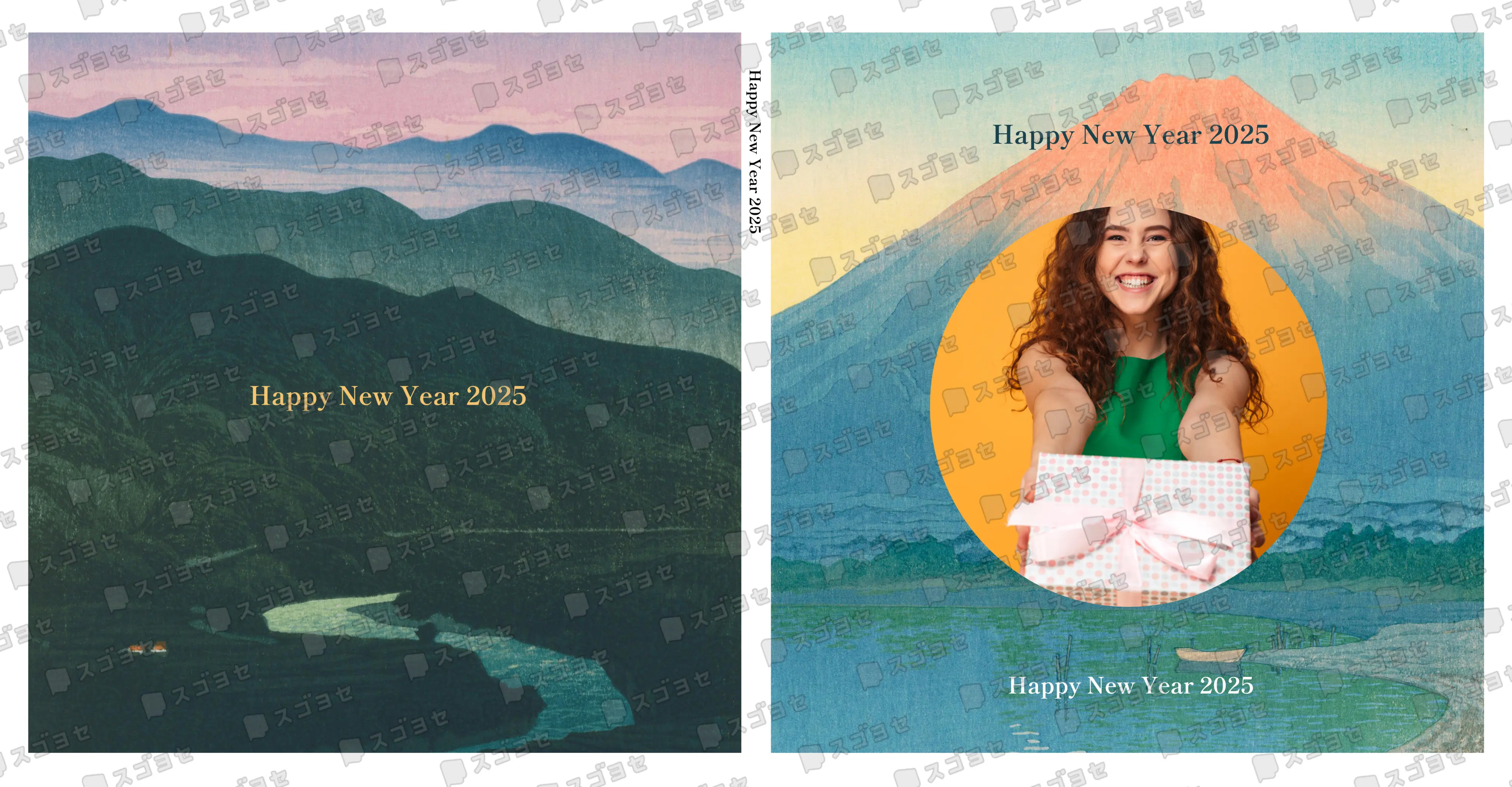
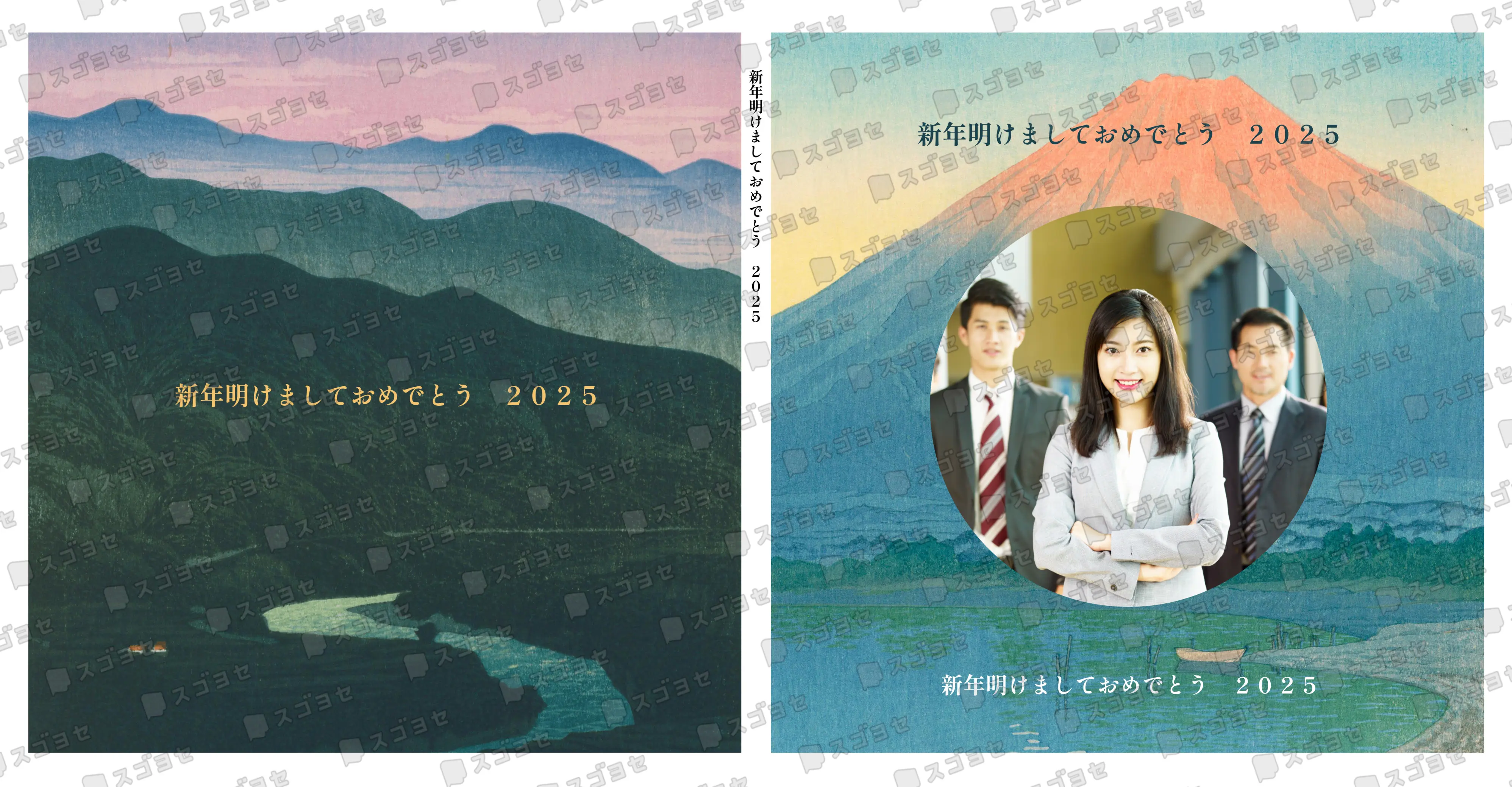
Yes, you can use full-width characters (such as Japanese) on the spine. However, please be aware that the text orientation changes based on the character type:
・Half-width characters (e.g., standard English alphabet): Displayed horizontally.
・Full-width characters (e.g., Japanese, some symbols): Displayed vertically.
Please check the downloaded proof data to ensure the text orientation and appearance are correct before finalizing your order.
What are the rules about prohibited content?
It is strictly forbidden by our terms of service to use our platform to create or distribute content that infringes on third-party copyrights or contains defamatory, obscene, or otherwise abusive material. Please use our service responsibly.
For more details, please refer to our Terms of Use.
Others
What is "Notify members"?
This is a bulletin board feature where the Organizer (Master) can post announcements for all participants to see, and members can post simple replies back to the Organizer.
Please note:
・This is not a tool for private messaging between members or from the Master to an individual.
・Please be respectful and do not post personal information or inappropriate content.
If any issues arise between users, please note that our company will not be involved. All matters must be resolved directly between the parties involved.
Contact Us
What if my question isn't in the FAQ?
If you cannot find an answer to your question, please contact us via our Inquiry Form. If your question is about a specific book, please include the book's preview URL to help us assist you more efficiently.
What is the "Help" page for?
If you have a question about using the service, this FAQ page provides answers and tips for a wide range of topics. Please browse the categories to find the information you need.
Troubleshooting
What is the password for the PDF I purchased?
Our PDF files are for viewing only and are password-protected against editing and printing. No password is required to open and read the file.
I'm having trouble logging in or using the site.
If you are having trouble, please check the following:
・Recommended Environment: The service works best on a PC using a modern browser like Chrome, Safari, or Firefox. Operation on other browsers or mobile devices is not guaranteed.
・Login Information: Please double-check that your email and password are correct.
・Browser Cache: Try clearing your browser's cache, as old data can sometimes cause issues.
・Internet Connection: Ensure you have a stable connection.
Why isn't my email address accepted for registration?
Our system currently accepts email addresses that contain only alphanumeric characters and the following symbols: . + - _ @
If your email address contains other characters, we kindly ask you to please use a different email address for registration.
Orders & Payment
How do I download the PDF I purchased?
After purchasing your PDF, you can download it using the following steps:
1. Go to 'My Page' → 'Purchased Message Books'.
2. Find the relevant book and click 'View Purchase Information and Delivery Status'.
3. Click the 'Download PDF' button.
Please note: It may take a few minutes to generate the PDF after purchase, especially for large books.
How is the printing price determined?
The final price of a printed book is based on its total number of pages. You can use the 'Compact Display' feature to fit more messages per page, which can help reduce the page count and lower the price.
Who can purchase a completed book?
Yes, any registered member who has the URL to the completed book can purchase it from the viewing page during its web viewing period (free for 2 weeks after completion, or longer if the Organizer has extended it).
The Organizer can also purchase from the 'Completed Message Books' section of 'My Page' until the order deadline (90 days after the message deadline, extendable by the Organizer), even after the web viewing period has ended.
Can I place an additional order for a book I already made?
Yes, you can place additional orders for the printed book or PDF at any time until the book's order deadline (90 days after the message deadline). The Organizer can extend the order deadline if needed.
How do I get a receipt?
For Credit Card, PayPay, or Rakuten Pay:
You can issue a PDF receipt yourself from the 'Purchased Message Books' section of 'My Page'.
For Convenience Store Payments:
The payment slip you receive at the store serves as your official receipt. We do not issue separate receipts for these transactions.
What is your return and exchange policy?
As our products are custom-made for each order, we cannot accept returns or exchanges due to customer convenience. Please check the preview data carefully before finalizing your order.
However, if your product arrives with a manufacturing defect or is different from what you ordered, please contact us within 7 days of receipt so we can arrange a return or exchange.
Who pays for return shipping?
If a return is necessary due to a product defect or an error on our part, we will cover the shipping costs. For returns due to other reasons, the customer is responsible for the return shipping fee.
Can I get a refund for a returned item?
In general, for defective items, our policy is to provide a replacement product rather than a refund.
What types of credit cards do you accept?
We accept VISA, Mastercard, and American Express.
How do I use a coupon?
Coupons can be applied on the checkout page when purchasing a printed book, PDF, web viewing extension, or order deadline extension.
How to Use:
1. On the checkout page, check the "Use Coupon" box.
2. Enter your coupon code and click "Apply."
3. Verify that the discount has been applied to your total before completing the payment.
Please Note: Coupons cannot be applied after a purchase is complete and may have usage limits or expiration dates.
Can I change the shipping address after ordering?
Once your order is confirmed, the production and shipping process will begin automatically. We apologize, but due to system limitations, we are unable to change the delivery method or shipping address after confirmation. Please ensure that all information is correct before finalizing your order.
In the event that the package is returned to us due to an unknown or incorrect address, a reshipping fee of 770 yen (via courier) will be charged separately. Thank you for your understanding.
Can I change the shipping address after ordering?
Once your order is confirmed, the production and shipping process will begin automatically. We apologize, but due to system limitations, we are unable to change the delivery method or shipping address after confirmation. Please ensure that all information is correct before finalizing your order.
In the event that the package is returned to us due to an unknown or incorrect address, a reshipping fee of 770 yen (via courier) will be charged separately. Thank you for your understanding.
Can I change the shipping address after ordering?
Once your order is confirmed, the production and shipping process will begin automatically. We apologize, but due to system limitations, we are unable to change the delivery method or shipping address after confirmation. Please ensure that all information is correct before finalizing your order.
In the event that the package is returned to us due to an unknown or incorrect address, a reshipping fee of 770 yen (via courier) will be charged separately. Thank you for your understanding.
Shipping & Delivery
How can I send a book directly to the recipient?
When purchasing a printed book, you can select the "Send directly to recipient" option. This ensures the package is sent with an invoice that does not show the price.
You can also include a custom message on the invoice for the recipient.
Can I ship multiple books in one order? (Cart Function)
Yes, you can use the cart function to ship multiple different printed books in a single order to the same address (up to 20 books, for domestic Japan shipping only).
Please note: This feature is not available for the PDFs, or viewing period extensions.
Can I pay extra to have my order delivered faster?
We apologize, but we do not offer an expedited production or shipping service for an additional fee. All orders are processed according to the standard timeline. Please order with enough time to meet your deadline.
What is the delivery time for orders to Singapore?
Our products are produced in and shipped from Japan. Production typically takes 4-5 business days, after which the product is shipped. For delivery to Singapore, please allow approximately 3 weeks from the time of your order. Specific delivery date requests cannot be accommodated.
What happens if my order is returned to sender?
If a product is returned to us due to an incorrect address or failure to receive, a second shipping fee will be required to resend the item.
